Imagine someone in Indore searching “best bakery near me” or “website designer in Ratlam” on their phone. The businesses that show up on the map with photos, reviews and a phone number get the call. Most of those listings are free, and they are created with a Google Business Profile.
In this guide, you will learn what a Google Business Profile is, how to set it up step by step, how to verify it, and how to optimize it so more local customers find you.
What Is a Google Business Profile?
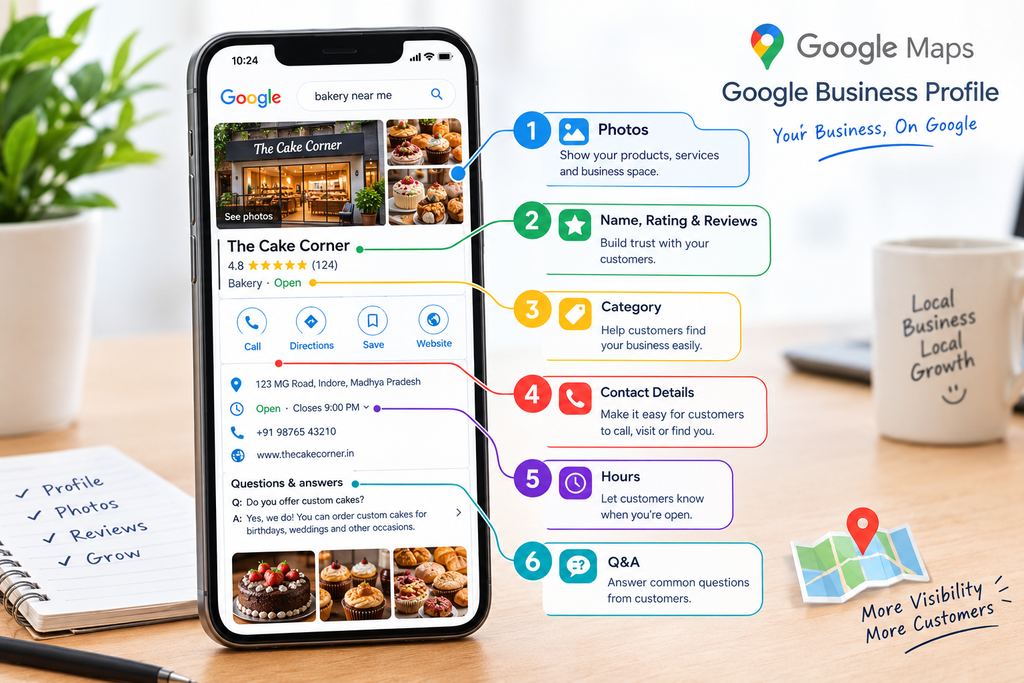
A Google Business Profile is a free listing that controls how your business appears on Google Search and Google Maps. It shows your name, address, phone number, opening hours, photos, services and customer reviews in one place.
It used to be called Google My Business. Today you can manage your profile directly from Google Search and Maps, or through the Business Profile Manager.
Why Every Local Business Needs One
- You show up where customers already search. Local searches like “near me” are often made right before a visit or a call.
- It is free. You do not need a website or an ad budget to start.
- It builds trust. Photos, reviews and correct details make a new business look established.
- It supports your other marketing. A strong profile works alongside local SEO and your website.
If you are new to online marketing, start with our Digital Marketing for Beginners guide to see where local listings fit in the bigger picture.
Before You Start: What You Need Ready
Keep these ready so setup takes about 15 minutes:
- Your exact business name, as it appears in the real world
- Business address, or the service area if you travel to customers
- Phone number (and WhatsApp number, if you use one)
- Opening days and hours
- Website link, if you have one
- A logo and 3 to 5 clear photos
- A Google account that you will use only for your business
Step-by-Step: How to Create Your Google Business Profile
Step 1: Sign in and add your business
Sign in with your business Google account, search for “Google Business Profile” and choose to add your business. Enter your business name.
Use your real business name only. Google’s guidelines for representing your business do not allow stuffing extra keywords or locations into the name. Doing so can get your profile suspended.
Step 2: Choose the right category
Your primary category is one of the strongest signals Google uses to decide which searches you appear for. Choose the one that describes your main service most closely, for example “Graphic designer” or “Website designer”. You can add secondary categories later.
Step 3: Add your location or service area
If customers visit you, enter your shop or office address and place the pin correctly on the map.
If you work from home or travel to clients, you can hide your address and list the areas you serve instead, such as Indore, Ratlam or nearby towns. Many freelancers and online service providers use this option.
Step 4: Add contact details
Add your phone number and website. Make sure your number matches exactly what you use on your website, Instagram and other pages. This consistency helps Google trust your details.
Step 5: Verify your business
Google needs to confirm that your business is real before the profile becomes fully visible. Depending on your business, verification may be offered by phone, text, email, video or postcard. You see the available options in your profile. Follow Google’s verification help page if you get stuck.
Do not skip this step. An unverified profile will not get full visibility.
Step 6: Add hours, services and a description
- Hours: Set accurate opening days and times. Update them for festivals and holidays.
- Services: List each service you offer, with a short description.
- Business description: You get up to 750 characters. Write clearly about what you do, who you help and where. Mention your city naturally, without repeating keywords.
Example description: “We are a digital and design studio helping small businesses in Indore and Ratlam grow online with websites, social media creatives, e-invites and ads. Message us on WhatsApp for a free consultation.”
Step 7: Add photos
Profiles with real photos look more trustworthy. Upload:
- Your logo
- A cover photo
- Photos of your workspace, team or products
- Samples of your work
Use bright, clear images. Avoid heavily edited or stock photos.
How to Optimize Your Profile After Setup
Setting it up is only the start. These habits help your profile perform better over time.
Collect and reply to reviews
Reviews are a major trust signal. Ask happy customers to leave a review and reply to every review politely, including negative ones. Google’s guidelines do not allow offering rewards for reviews, so ask honestly. We will cover this in detail in our upcoming guide on collecting Google reviews.
Post updates regularly
You can share offers, events and updates directly on your profile. Posting regularly shows customers that your business is active.
Keep your details accurate
Wrong hours or an old phone number can lose you customers. Check your profile every month.
Use your insights
Your profile shows how many people searched for you, called you or requested directions. Use these numbers to understand what works.
Common Mistakes to Avoid
- Adding keywords to the business name
- Choosing too many or irrelevant categories
- Using different phone numbers on different platforms
- Ignoring reviews and messages
- Uploading blurry or copied photos
- Creating duplicate profiles for the same business
How Google Business Profile Fits With Your Website and SEO
Your profile gets you found on Maps and in local results. Your website explains your services in detail, and your content brings in people searching for answers. To rank well locally, you need all three working together.
To understand how Google ranks pages, read Google’s own SEO Starter Guide, and our post on what SEO is and how it works. If you are deciding where to spend money, see Google Ads vs Meta Ads too.
Frequently Asked Questions
Is Google Business Profile free?
Yes, creating and managing a Google Business Profile is free.
Do I need a website to create one?
No. You can create a profile without a website, but adding one helps customers learn more about you.
Can I create a profile without a shop address?
Yes. If you serve customers at their location, you can set a service area and hide your address.
How long does verification take?
It depends on the method Google offers for your business. Some methods are quick, while others take longer. Check the status inside your profile.
How long before I appear on Google Maps?
Usually after verification. Rankings improve over time as your profile gets complete details, photos and reviews.
Conclusion
A Google Business Profile is one of the simplest and most effective ways for a local business to get discovered. Set it up honestly, verify it, fill in every detail, and keep it active. Do this consistently and your business will be easier to find in Indore, Ratlam or wherever your customers are.
Need help setting up your profile or building a website to go with it? Message Creative Nest on WhatsApp and we will help you get started.
Leave a Reply